
Plan every project. Assign every mission. and launch on time!
 Chat on WhatsApp
Let’s launch something great together!
 Mission Control
Launch Northpeak homepage
T-0 TodayQ1 campaign assets
T-3dClient onboarding · Brightloop
T-12d- 4viewsList, Board, Calendar & Table
- 5rolesOwner to guest
- 5fontsfor your own brand
- 14field typesfor custom fields
Built for teams like yours
Projects hold missions, missions hold objectives. Add custom fields, @mention your crew in comments, and keep everyone in sync from the inbox, whatever kind of work you ship.
Tell us about your teamSee Missions in action
Eight short videos, about 11 minutes in all. Follow one client project from the first plan to your own branding and the mobile app.
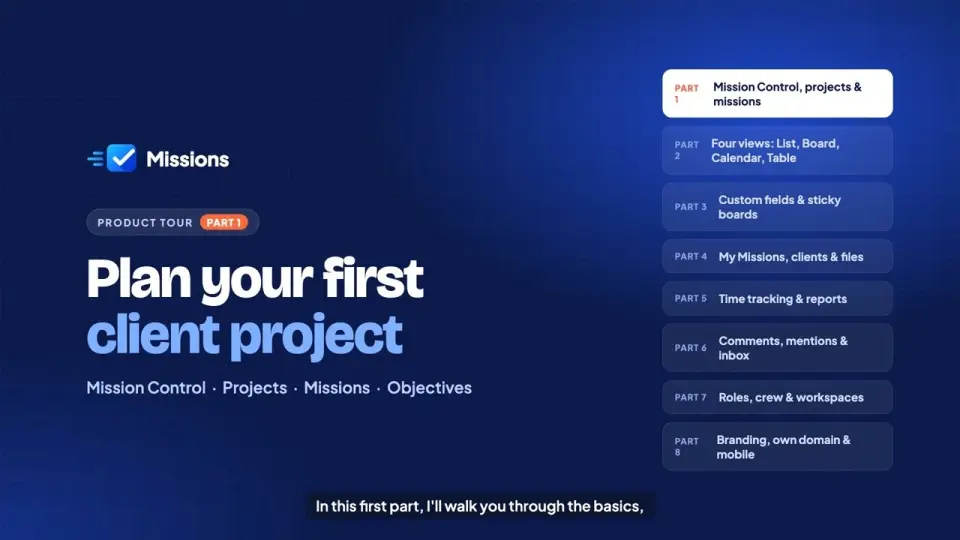
 2:19Part 01Plan your first client project
 1:26Part 02Four views: list, board, calendar and table
 1:28Part 03Custom fields and sticky boards
 1:20Part 04My Missions, clients and sharing
 1:09Part 05Time tracking and reports
 1:10Part 06Comments, mentions and inbox
 1:05Part 07Roles, crew and workspaces
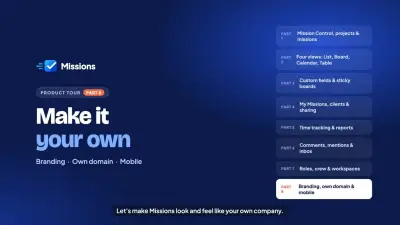 1:14Part 08Branding, domain and mobile
See work your way
The same missions, four ways to look at them. Switch views in one click and nobody has to re-enter anything. Each project remembers its saved views.
- List for quick triage and bulk updates
- Board to move work from To do to Done
- Calendar to see every T-minus at a glance
- Table for custom fields, side by side
Website relaunch
To do 3
Doing 1
Done 2
| Mission | Owner | Status | Due | Hours |
|---|---|---|---|---|
| Hero copy & headline | SJ | Doing | T-0 Today | 6 |
| Build pricing page | DV | To do | T-3d | 10 |
| QA on mobile | PN | To do | T-6d | 4 |
| Homepage wireframe | LT | Done | Done | 8 |
Break big work into tiny wins
Every project holds missions, and every mission holds objectives. Tick them off and progress updates itself.
- Checklists that roll up into a progress ring
- T-minus due chips so deadlines stand out
- Custom fields in 14 types: editable dropdowns, multi-select labels, file uploads and more (Starter and up)
Launch Northpeak homepageT-3d- Low
- Medium
- High
- Urgent
Talk where the work is
Comment on any mission, @mention a crewmate to pull them in, and see every change in the activity log.
- @mentions land straight in their inbox
- Threads stay attached to the mission
- An activity log shows who changed what
Two headline options are in the doc. @Asha which one fits the brand?
Option B. Shorter and warmer. Ready for the client!
- Asha moved “Hero copy” to Doing
- Ravi ticked “Images compressed”
- Sana changed the due date to today
Never miss a ping
Mentions, assignments, comments and due-date reminders collect in one inbox. Each one is marked unseen, seen or read, so you know what’s new.
- Unseen, seen and read states
- Mark all read in one click
- Browser push and email, set per type
Think out loud, together
A free-form board for the messy early stage: ideas, moodboards, retro notes. Drag the notes around and try it.
- Coloured notes you can move anywhere
- Great for workshops and feedback
- Lives next to your missions
Fun wording, or plain wording
Missions speaks in Mission Control, Missions, Objectives and Crew by default. Prefer neutral words? Switch it off for the whole company.
- One switch for every label
- Neutral wording for formal clients
- Same features either way
Mission Control
Your brand, front and centre
Set your logo, colour, font, corner style and light or dark theme on any plan, then serve it from your own domain. Pick a sample brand to see it change.
- Logo, colour and 5 font choices
- Sharp, rounded or soft corners; light, dark or system
- Your own domain, like tasks.acme.com (Starter and up)
Good morning, Asha
The right access for everyone
Five built-in roles from owner to guest, and workspaces to keep each team or client apart. Switch workspace without signing out.
- Owner, admin, manager, member and guest
- Guests see only the projects you share and can comment
- Give a teammate or freelancer the whole workspace or only selected projects
- Custom roles on the Business plan
- Acme Studio
- Northpeak (client)
- Brightloop (client)
- Personal
Owner · Owns the company account and everything in it, including billing and deletion.
- Delete the company or transfer ownership (yes)
- Branding, domain and billing (yes)
- Invite people and change roles (yes)
- See everyone’s tracked time (yes)
- Create and archive projects (yes)
- Edit any mission, in bulk (yes)
- Create, edit and assign missions (yes)
- Track their own time (yes)
- Comment on missions (yes)
- See projects and missions (yes)
Admin · Runs settings, branding and people. Can do everything except delete the company or hand over ownership.
- Delete the company or transfer ownership (no)
- Branding, domain and billing (yes)
- Invite people and change roles (yes)
- See everyone’s tracked time (yes)
- Create and archive projects (yes)
- Edit any mission, in bulk (yes)
- Create, edit and assign missions (yes)
- Track their own time (yes)
- Comment on missions (yes)
- See projects and missions (yes)
Manager · Plans projects and assigns the crew. No access to company settings or people management.
- Delete the company or transfer ownership (no)
- Branding, domain and billing (no)
- Invite people and change roles (no)
- See everyone’s tracked time (no)
- Create and archive projects (yes)
- Edit any mission, in bulk (yes)
- Create, edit and assign missions (yes)
- Track their own time (yes)
- Comment on missions (yes)
- See projects and missions (yes)
Member · Does the work: creates and edits missions, tracks time and comments.
- Delete the company or transfer ownership (no)
- Branding, domain and billing (no)
- Invite people and change roles (no)
- See everyone’s tracked time (no)
- Create and archive projects (no)
- Edit any mission, in bulk (no)
- Create, edit and assign missions (yes)
- Track their own time (yes)
- Comment on missions (yes)
- See projects and missions (yes)
Guest · Your client: sees only the projects you share with them and can comment. Never sees other projects, clients, the team or settings.
- Delete the company or transfer ownership (no)
- Branding, domain and billing (no)
- Invite people and change roles (no)
- See everyone’s tracked time (no)
- Create and archive projects (no)
- Edit any mission, in bulk (no)
- Create, edit and assign missions (no)
- Track their own time (no)
- Comment on missions (yes)
- See projects and missions (yes)
Time tracking
Know where the hours go. Track time on missions with a live timer or manual entries, then report on it by week or month. Time tracking is plan-based, so ask us which plan fits.
Live timer on every mission
Start, pause and stop a timer right on a mission. It keeps running if you switch tabs and stays in sync across your devices.
Manual entries
Forgot to start the timer? Add or edit time afterwards with a date, duration and note.
Working hours & holidays
Set your company’s working hours and holidays so reports reflect real working days.
Weekly & monthly reports
See time by person, project and mission, with the people tracked shown for the period.
CSV export
Download time entries as a CSV for invoicing, payroll or your own spreadsheets.
Custom entry fields
Add your own fields to time entries, such as billable or activity type.
Safe, sound and yours
Client work deserves care. Missions does the basics properly, on every plan.
Sessions you control
See every device signed in to your account and sign out the ones you don’t know. Changing your password signs out the rest.
Audit log
Sign-ins, member changes and settings changes are recorded, and so is every support visit from our team.
Daily backups
The database is backed up every day to separate, private storage.
Your data, exportable
Download projects, missions, comments and files as one ZIP on the Pro and Business plans.
Up and running in three steps
No long setup, and no waiting for us. Most of the work is deciding what to launch first.
- 1
Start your free trial
Sign up with your email and password in minutes, no card needed. When you are ready, subscribe to a plan in the app and keep going.
- 2
Make it yours
Add your logo, colour and font, pick a corner style and light or dark, and connect your domain.
- 3
Invite your crew
Give each person a role, plan your projects and watch the T-minus count down.
Click around before you sign up
Open a ready-made workspace with sample projects, missions and a team. Move missions, log time, open reports and switch between Owner, Manager and Member to see what each role can do. Nothing is saved and no card is needed.
Simple plans. Big impact.
Every plan includes all four views, your own branding and the mobile app. Try Starter or Pro free, no card needed, then pick the plan that fits your crew. Business is bought directly, with no trial.
Starter
Best for small teams getting organised
Chat on WhatsAppPriced for your team
- 15 members
- 2 workspaces
- 20 projects
- 10 GB storage
- Custom domain
Pro
Best for agencies running client work
Chat on WhatsAppPriced for your team
- 25 members
- 5 workspaces
- 100 projects
- 50 GB storage
- Custom domain
- Data export
Business
Best for larger teams with extra control
CustomTailored to your team
- 100 members
- Unlimited workspaces
- Unlimited projects
- 200 GB storage
- Custom domain
- No “Powered by” credit
- Data export
- API access
Custom plan
Best for teams that outgrow the standard plans
CustomBuilt around your team
Need more members, SSO, API access or invoicing? Get a custom plan built around your team.
All prices are in US dollars and include GST and any other applicable taxes. Payments are processed by Paddle, our Merchant of Record. Read our Terms, Privacy Policy and Refund & Cancellation Policy. Need a different limit, or a plan for a bigger organisation? Chat on WhatsApp.
Many clients. One crew.
Missions is built around how agencies really work: lots of clients, lots of projects and one team keeping every deadline, in a brand your clients recognise.
Your brand, not ours
Your logo, colours and font on every screen. On Business, remove the “Powered by” credit too.
A workspace per client
Keep each client’s projects apart and switch between them without signing out.
Share a project with your client
Click Share on a project and invite your client as a guest. They see only that project and can comment, never your other clients or your team.
On your own domain
Run Missions at an address like tasks.youragency.com, from the Starter plan up.
Guides for teams that ship
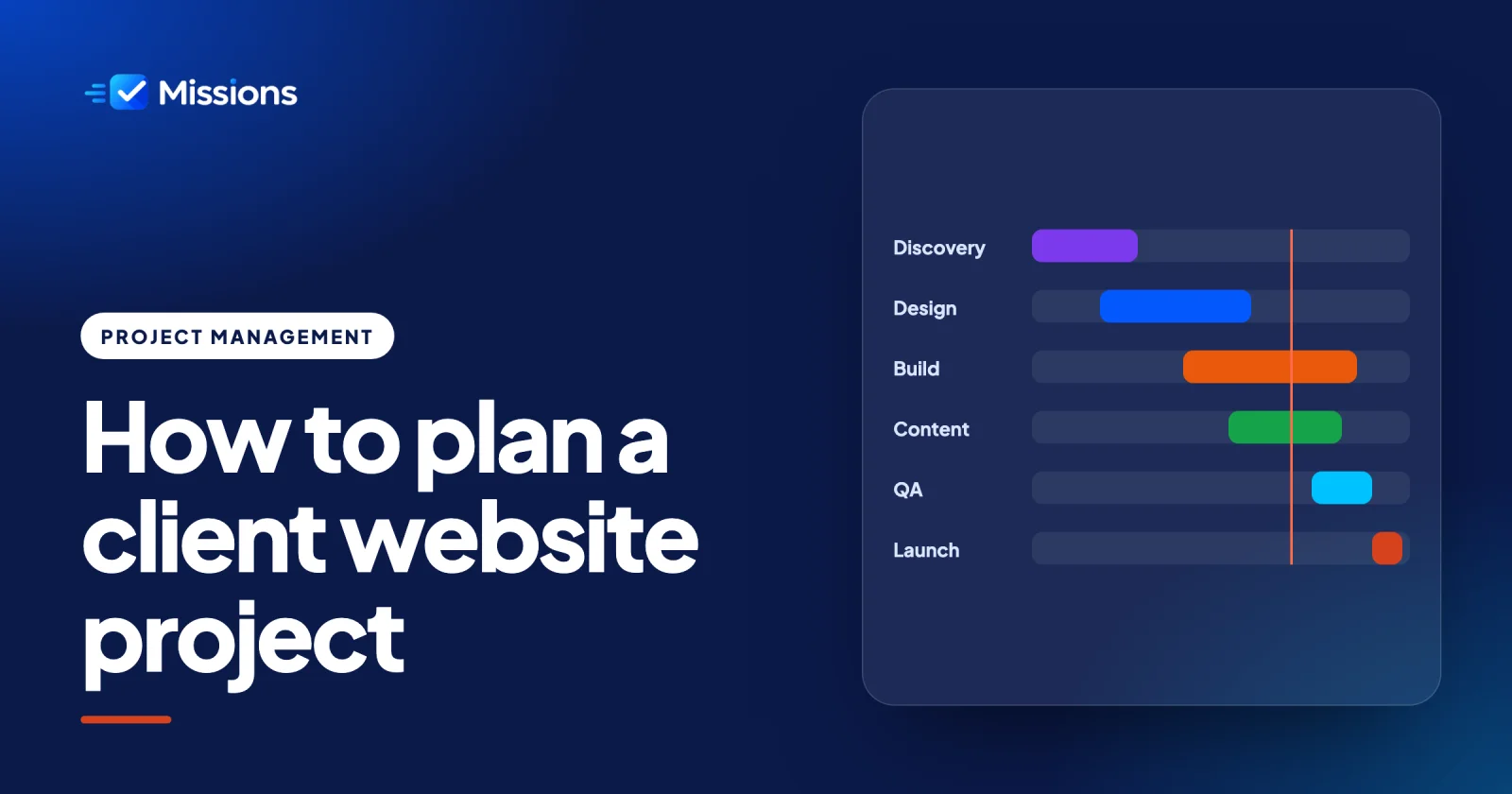
How to plan a client website project from kickoff to launch
A practical week-by-week plan for client website projects: scope, sitemap, design, build, content, QA, launch and a clean handover.
Questions? We’ve got answers.
Can’t find what you need? Write to hello@missionnops.com.
Ask us anythingA mission is a task. Projects hold missions, and each mission can hold objectives, which are its checklist items. Tick the objectives and the mission’s progress updates itself.
Start a free trial yourself: sign up with your email and password, verify your email and your workspace is ready in minutes. Then add your branding and invite your team. Prefer a walkthrough first? Book a demo.
Yes. Open the live demo: a ready-made workspace with sample projects, missions and a team. Enter your email and click around: move missions, log time, open reports and switch between Owner, Manager and Member. Nothing you do is saved. When you are ready, start a free trial for your own workspace.
Yes. The Mission language switch changes Mission Control, Missions, Objectives and Crew to Home, Tasks, Subtasks and Members for the whole company.
Yes, on every plan. Set your logo, colour, one of 5 fonts, a corner style and a light, dark or system theme. From Starter up you can also serve it from your own domain, such as tasks.acme.com.
Yes. Open the project, click Share and choose the guest role. Your client sees only the projects you share with them, never your other projects, other clients, team or settings. They can follow the missions and comment, but not change anything. Add or remove people any time from the project’s crew panel. There are 5 built-in roles: owner, admin, manager, member and guest.
Yes. When you invite someone or share a project, choose whole workspace (every project in it) or only selected projects. A freelancer can then work fully in their project without seeing your other projects. Bigger access always wins: adding someone who already sees the whole workspace to a project never narrows it. Each person uses one seat, however many projects they are in. Available on every plan.
Yes. How many workspaces your company can have depends on your plan (see the pricing page), and people switch between them without signing out.
Yes. Missions is a progressive web app (PWA). Open it in your mobile browser, add it to your home screen and turn on push notifications.
You can see and sign out every active session, important changes go into an audit log and the database is backed up every day. On Pro and Business you can export all of your data as a ZIP at any time.
You can try Starter or Pro free, no card needed. When you are ready, subscribe in the app, monthly or yearly. Business has no trial: you buy it directly. Prices are on the pricing page and include GST and any other applicable taxes. A custom plan is priced with you.
Start a live timer on any mission, or add time by hand afterwards. Set working hours and holidays for your company, then see weekly and monthly reports with the people tracked, and export them as CSV.
Every role except Guest can track time on their own missions, and each person sees their own entries. Admins who can manage time see everyone’s entries and the company settings.
It depends on your plan. Ask us at hello@missionnops.com and we’ll tell you which plan includes it.
Yes. Add the companies you work for on the Clients screen, then group projects under a client. Each client page lists its projects with progress and counts. Owners, admins and managers can add, rename and delete clients; deleting a client never deletes its projects.
Yes. Single select and multi-select fields have an option editor: add options, rename them, pick a colour for each, reorder them and delete the ones you no longer need. Before you delete an option, you see how many missions use it, and you can move them to another option instead of clearing them. Any field can be marked required: a value can’t be cleared once it’s set, and missions that still lack one are flagged “Missing required field” instead of blocking quick adds. Making a field required, tightening its limits or deleting it first shows how many missions are affected; fields can also be archived (hidden, values kept) and a deleted field can be undone for 30 seconds. There is also a Files field for images or documents, with a limit on how many files and how large they can be. Owners, admins and anyone with the field permission can set fields up. Custom fields and their limits depend on your plan, ask us.
Yes. In Settings, Statuses & labels, you can add statuses to any project, give each a colour, rename them, reorder them and pick which one new missions start in. Every status has a category (Not started, Active, Done or Cancelled), and the category, not the name, decides what counts as open, overdue or finished, so progress, deadlines, reports and notifications keep working with your own names. A project always keeps at least one Not started and one Done status. If you delete a status that missions still use, you see how many, and you choose the status they move to; nothing is lost. Labels are shared across a workspace: rename or recolour one and it changes everywhere, merge two into one, or delete one and it is removed from every mission it was on. Owners, admins and managers can manage them. Limits depend on your plan, ask us.
We email the Owner and billing admins before it ends and again at the end. You then get a grace period with full access, then a read-only period where everyone can still view and export their work. Your data stays safe, and renewing switches editing back on straight away. Ask us for the exact dates on your plan.
You try the plan you choose (Starter or Pro), with its full limits and features, for the whole trial. No card is needed. When the trial ends the workspace locks, and your data is kept, so you can subscribe to keep going. Business has no trial: you buy it directly instead (see “How do I buy Business?”).
Choose Buy now on the Business card. If you already have a workspace, enter its name and the Owner buys Business from Settings, Billing. If you are new, create your workspace and pay in the same flow: your workspace is ready as soon as the payment goes through. Prices include GST. Questions? Use Chat on WhatsApp on the pricing page.
No. Business has no trial, because it is the plan for larger teams that want their own brand, with your own domain, no “Powered by” credit and custom roles. You can try Starter or Pro free first, with no card, and upgrade to Business any time from Settings, Billing.
The workspace locks until you subscribe. Your data is kept, you can export it, and the Owner can subscribe from the locked screen. As soon as the payment goes through, everything unlocks again.
The workspace Owner opens Settings > Billing in the app (sign in), picks a plan and pays at checkout. An upgrade takes effect at once. Want to talk it through first? Contact us.
Ask us. If you need more time to try Missions with your team, write to hello@missionnops.com and we’ll see what we can do.
No. Sign up with an email and password, verify your email, and start. We never ask for a card.
No. You sign up and sign in with an email and password.
After your free trial you subscribe to a plan in the app and pay at checkout. The subscription renews automatically every month or year, depending on what you chose, until you cancel. Payments are processed by Paddle, our Merchant of Record, which also issues your invoices.
Both are available on the paid plans. Paying yearly costs less than twelve monthly payments, and the pricing page shows the exact saving next to the Monthly / Yearly switch. The monthly equivalent and the yearly total are both shown before you pay.
The workspace Owner can cancel at any time in Settings > Billing. You keep access until the end of the period you have paid for, and then the subscription does not renew. Details are in our Refund & Cancellation Policy.
Open Settings > Billing and choose another plan. An upgrade takes effect immediately and you pay the difference for the rest of the period, pro rata. A downgrade takes effect at the end of the period you have paid for. Nothing is deleted if you go over the smaller limits.
Paddle retries the payment for 7 days. Your team keeps full access meanwhile, a banner in the app asks the Owner to update the payment method, and we email the Owner and billing admins on day 0, day 3 and day 6. If it still has not gone through after the 7 days, the workspace locks. Your data is kept for 90 days, and as soon as a payment goes through it unlocks again within seconds.
In Settings > Billing you can open every invoice and receipt, and Paddle also emails a receipt after each payment. Add your company name and tax number at checkout if you need them on the invoice.
All prices include GST and any other applicable taxes, so you pay exactly the price listed. As our Merchant of Record, Paddle calculates and remits the tax for your location, and your invoice shows the tax breakdown.
Yes, for many countries. The pricing page shows prices in your local currency when we support it, for example rupees in India, and you pay in that same currency at checkout. You can switch the currency on the pricing page. The final currency is set by your billing country, and everywhere else prices are in US dollars. Prices always include GST and any other applicable taxes.
We refund if a technical issue on our side stops you from using Missions, if the product was described inaccurately, for billing errors and for a verified outage. We do not refund a change of mind, partial periods, unused time, downgrades or cancellations, which is why every account starts with a free trial. Where the law gives you a right to a refund we honour it. Read the full Refund & Cancellation Policy.
You keep access until the end of the paid period. After that the workspace is locked, but your data is kept for 90 days, so you can export it or subscribe again and pick up where you left off. See the Privacy Policy.
Major cards and other methods shown at checkout. The available methods depend on your country, and Paddle handles the payment securely, so we never see your card details.
Yes. If you need more members, SSO, API access or invoicing, we build a custom plan around your team. Contact us or write to hello@missionnops.com.
Nothing is deleted, ever. If a change leaves you with more projects, members or other items than your plan includes, everything you already have stays readable and editable, you just can’t add more of that. The Owner gets a clear prompt to choose what to archive, or to contact us to upgrade and keep everything, and a couple of reminder emails over 14 days. If nothing is decided by then, the newest extras are archived, not deleted, and they come back when you upgrade. When a plan gets better, existing workspaces can get the improvement straight away, and the Owner is told about it.
Still unsure about pricing or plans? Chat on WhatsApp. Or ask in chat.
HAVE A TEAM TO ORGANISE?
Want a walkthrough, a paid plan or a longer trial? Tell us a little about your crew and we’ll set it up with you. You can also start a free trial yourself. We’ll reply on WhatsApp.
Prefer email? Write to hello@missionnops.com
Your message is ready to send. We’ll reply within one business day. Nothing opened? Open it here.